How To Speak Line#

One of the key functions of the RPNPC is to be able to speak to the player with premade messages sample greening or that ever!
Hint
To order to get your NPC assigned ID click here to find out
Adding speak lines#
Hint
Keep in mind that speak line will use the RPEngine will use emote processing engine, it is the same as when trying out an emote in-game.
To order to add emote speak line when use this command as an example:
/rpnpc speak add {NPC TEMP ID} {Your emote for the NPC}
Now for the sample we are going to use this command /rpnpc speak add 11 Hello there stranger" waved to the stranger with a smile on their face to give our NPC a speak line. Once you run this command you will see a message that speak was added to the NPC, to order see the speak line just right-click on the NPC to order to see the speak line!
Hint
To change your NPC name then click here to find out
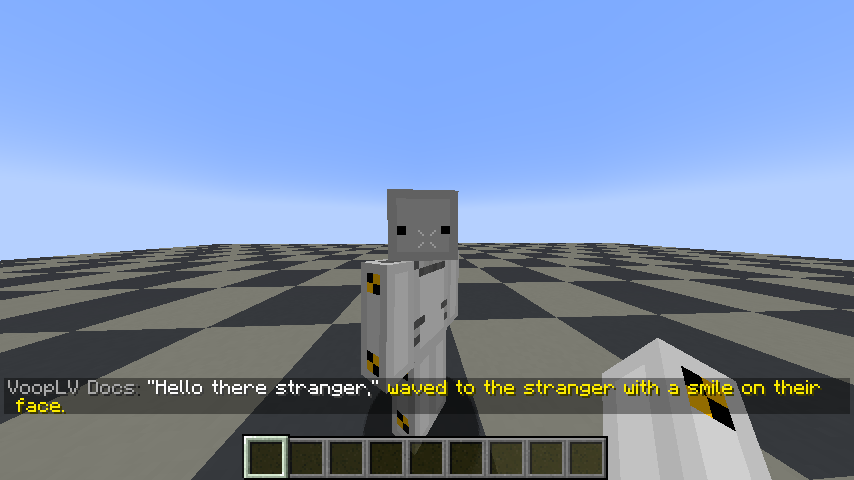
List all of the speak lines#
In order to view NPC speak lines simply follow this command /rpnpc speak list {TEMP NPC ID}. Once you run this command you will see numbers starting from 1 to depends how many the speak line does this NPC has and then you click on the number to view the speak line emote!

Changing the emote color#
One of the features that RPNPC speak lines has is the ability to change the emote color to be different.
Example Commands:
/rpnpc speak color {TEMP NPC ID} {HEX COLOR CODE}/rpnpc speak color default {TEMP NPC ID}- This will reset the emote color back to default!
Now in this sample lets us change your emote color to dark red in the case which the hex color #870000 and lets apply it to the RPNPC

Remove speak lines#
Now if you want to remove a speak line from the RPNPC then it is pretty straightforward, but before doing to please read this how to see list of speak line for the NPC.
Example Command: /rpnpc speak remove {TEMP NPC ID} {SPEAK LINE}